![Square 1000x1000.png]](https://faq.carts.guru/hs-fs/hubfs/Square%201000x1000.png?width=80&height=80&name=Square%201000x1000.png)
Migrating your data from Klaviyo to Carts Guru is an easy process.
Follow these steps to get started:
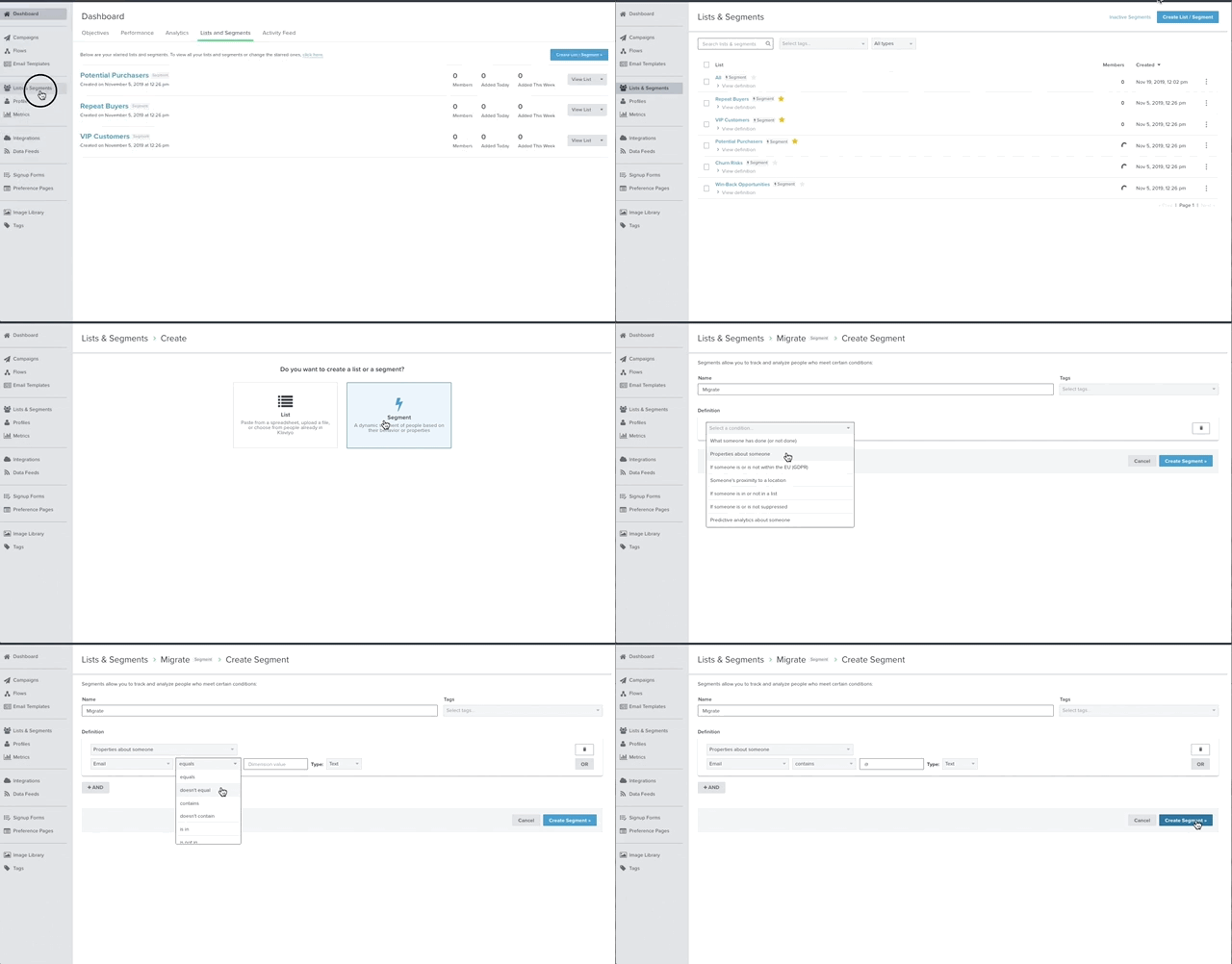
1. Log in to your Klaviyo account and go to "Lists & Segments".
2. From here, click on the "Create list/segment" button in the top right of the screen.
3. After, select "Segment".
4. Give your segment a name, like "Klaviyo Migration".
5. Under Definition, select the condition: Properties about someone -> contains -> @.
6. Click "Create Segment".
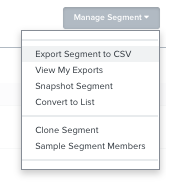
7. You will be taken to a screen previewing all your contacts. In the top right corner, click on the "Manage Segment" drop-down.
8. Select Export Segment to CSV and wait for the file to download.
Finally, import your contacts into Carts Guru through CSV file.