![Square 1000x1000.png]](https://faq.carts.guru/hs-fs/hubfs/Square%201000x1000.png?width=80&height=80&name=Square%201000x1000.png)
Step 1: Export Your Contacts
Start by exporting your contacts from one of the following sources:
- Your CMS (Shopify, PrestaShop, Magento, WooCommerce, etc.)
- Your CRM or database (DMP)
- Your email service provider or marketing platform
You should obtain a CSV file containing your contacts' information.
Step 2: Prepare Your CSV File
Before importing your file into Carts Guru, it is important to review and clean your data.
Verify Contact Consent
Make sure that every contact in your CSV file has given their consent to receive your marketing communications (email and/or SMS, depending on your use case).
Remove any unsubscribed contacts or contacts who have not provided the required consent to ensure compliance with applicable regulations.
Verify the Phone Number Format
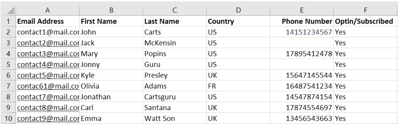
Phone numbers must be stored in international format, without spaces or special characters.
Examples:
- United States: 14151234567
- France: 33612345678
⚠️ Important: If one or more phone numbers are incorrectly formatted (missing the country code, containing a "+" sign at the beginning, or using an invalid format), the import will fail and cannot be completed until the phone numbers have been corrected.
Keep Only the Required Columns
⚠️ Important: Your CSV file must contain an Email Address column, as well as a second column, even if it is empty, since a CSV file must contain at least two columns to be imported into Carts Guru.
We also recommend including the following fields:
- First Name
- Last Name
- Phone Number
All other columns can be removed. However, if you don't have time to clean up the file right away, you can simply choose not to map those fields during the import process.
📷 Example of a CSV file before cleanup

Once you have removed unnecessary columns and verified your data, save the file in CSV format using Excel, Google Sheets, or any spreadsheet application.
📷 Example of a cleaned CSV file
Step 3: Import the CSV File into Carts Guru
Before starting the import, decide whether you want to:
- add these contacts to your global Match Everyone list (recommended when installing Carts Guru for the first time); or
- import them into a dedicated Static List.
Create a Static List (Optional)
If you'd like to easily identify the imported contacts later, we recommend creating a Static List before importing your file.
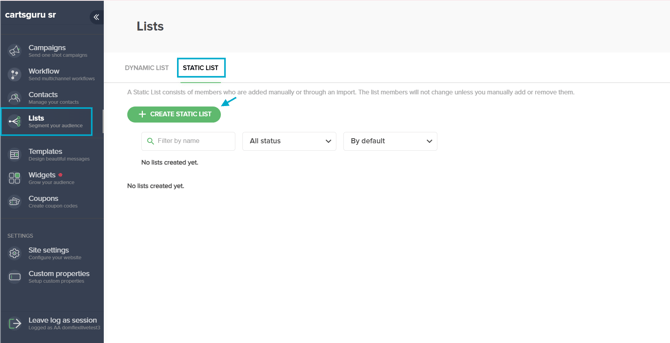
- From the left-hand menu, go to Lists.
- At the top of the page, select the Static Lists tab.
- Click the green Add Static List button.
- Enter a name for your list.
- Create an empty list by adding the following condition:
Contact Property → First Name → Equals → a non-existent value (for example: xvgj)
The purpose of this condition is simply to create an empty list that will serve as the destination for your imported contacts.
⚠️ Important: If you do not add this condition, the Static List will automatically include all existing contacts in your account.
📷 Creating a Static List
Import Procedure
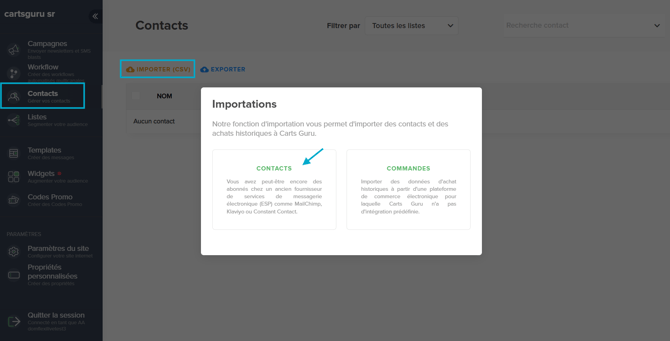
- From the left-hand menu, click Contacts.
- Click the Import button at the top of the page.
- Select the type of import you want to perform:
- Contacts
- Orders
- Select Contacts, then choose your CSV file.
📷 Selecting the CSV File in Carts Guru
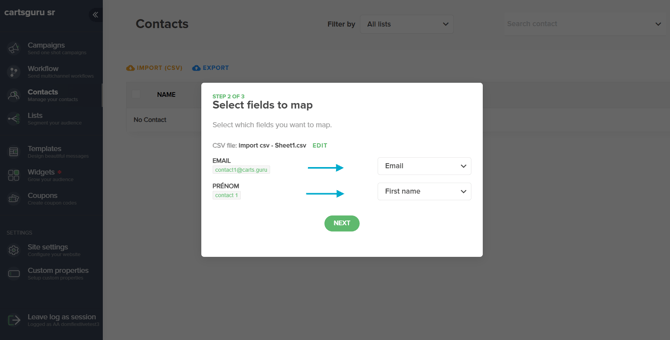
- Once the file has been processed, map each column in your CSV file to the corresponding Carts Guru field. For example:
George → First Name
US → Country - If a column is not needed or has no equivalent in Carts Guru (for example, an Opt-in column), select Do not map this field.
📷 Field Mapping Screen
- Click Next.
- Confirm that all imported contacts have given the required consent to receive your email and/or SMS communications.
- If desired, select the Static List you created earlier to add the imported contacts to it. Please note that all contacts are automatically added to the dynamic "Match Everyone" list.
📷 Selecting the Static List and Confirming the Import
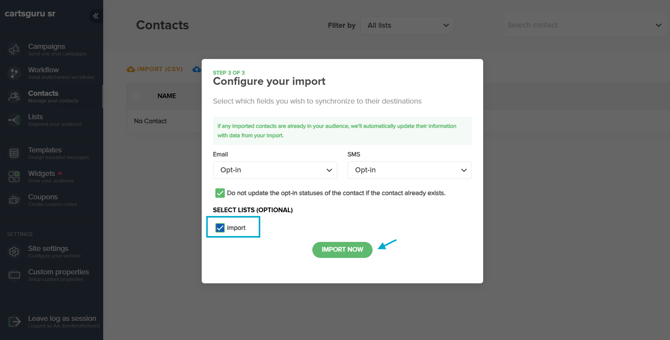
- Click Import Now to start the import.
Your import is now complete. ⏳ Please allow a few moments for the import to be fully processed. Depending on the number of contacts being imported, this may take a few minutes before all contacts become visible in your account.